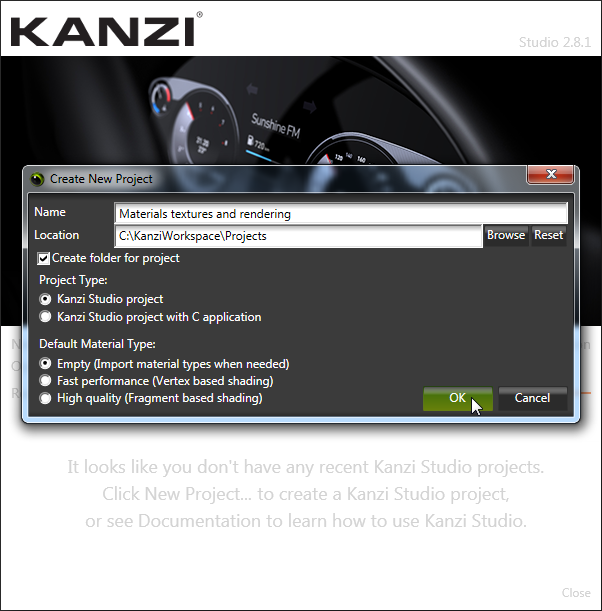
In the Kanzi Studio Quick Start window click New Project...:
- Name your project.
- For the Default Material Type select Empty.
Leave all other settings as they are, and click OK.
The directory contains all 3D assets and images for textures you need in this tutorial.
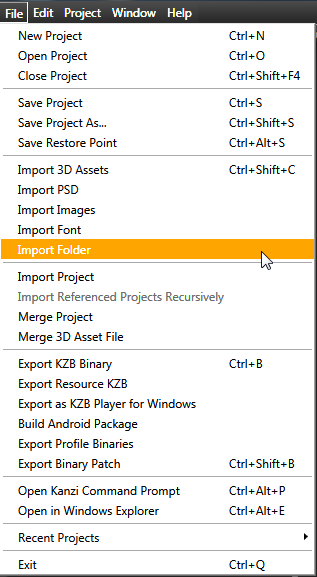
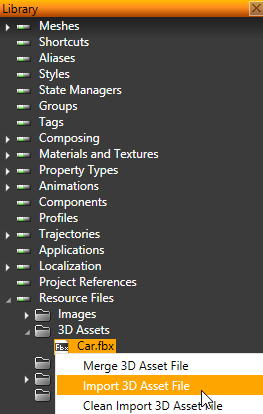
Kanzi Studio imports the car model to your project, creates a new scene in your project, and places the imported 3D content into that scene.
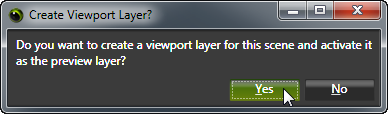
When asked whether you want to create a viewport layer for the scene and activate it as the preview layer, click Yes.
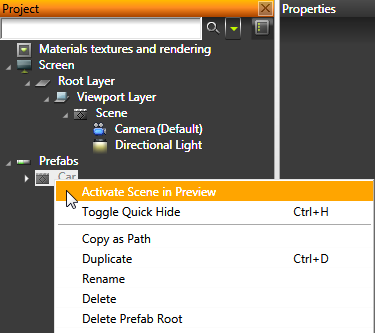
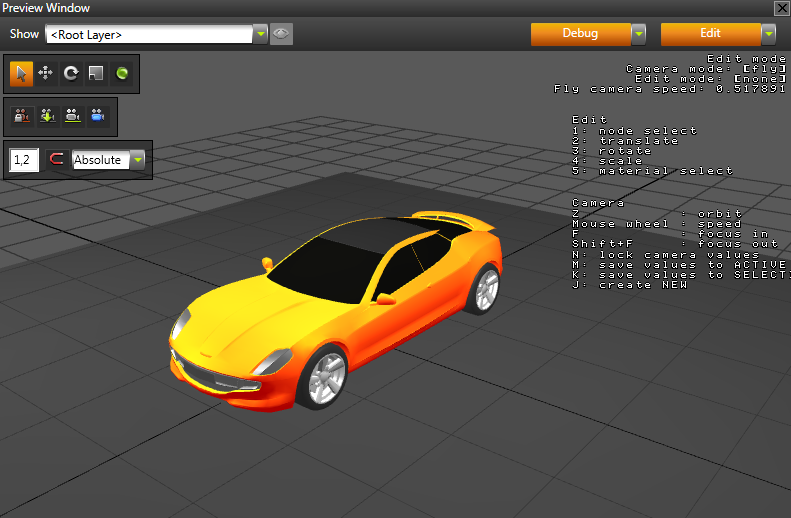
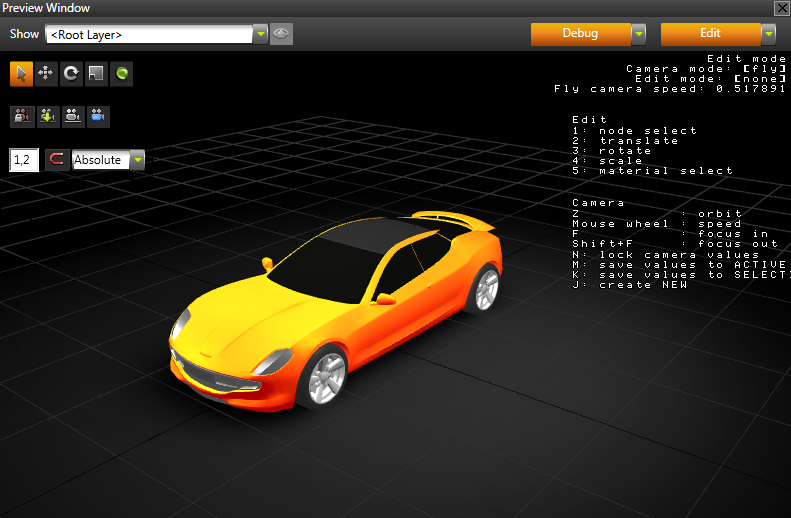
You can now see the imported content in the Preview.
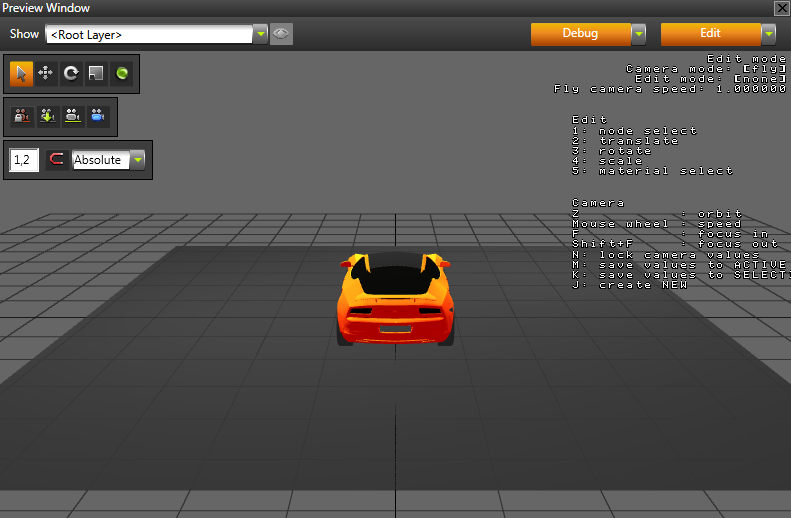

When you move around the scene in the Edit mode you are using the free camera and not any of the cameras in the scene.
To undo the change of position, click Edit to exit the Edit mode.
Use these free camera controls to move around in the Preview.
| Control | Description |
|---|---|
| W | Move forward. Hold down Shift to double the speed. |
| S | Move backward. Hold down Shift to double the speed. |
| A | Move left. Hold down Shift to double the speed. |
| D | Move right. Hold down Shift to double the speed. |
| Q | Tilt left. |
| E | Tilt right. |
| Click and drag the left mouse button | Rotate |
| Click and drag the right mouse button | Pan |
| Mouse scroll wheel | Set camera speed. |
| Hold down Z | Activate the orbit camera. Use the orbit camera to rotate around the center point of the Preview. |
| Hold down Z and mouse scroll wheel | Zoom |
| F | Focus on the object selected in the Project. |
| Shift+F | After focusing on the object selected in the Project, focus out. |